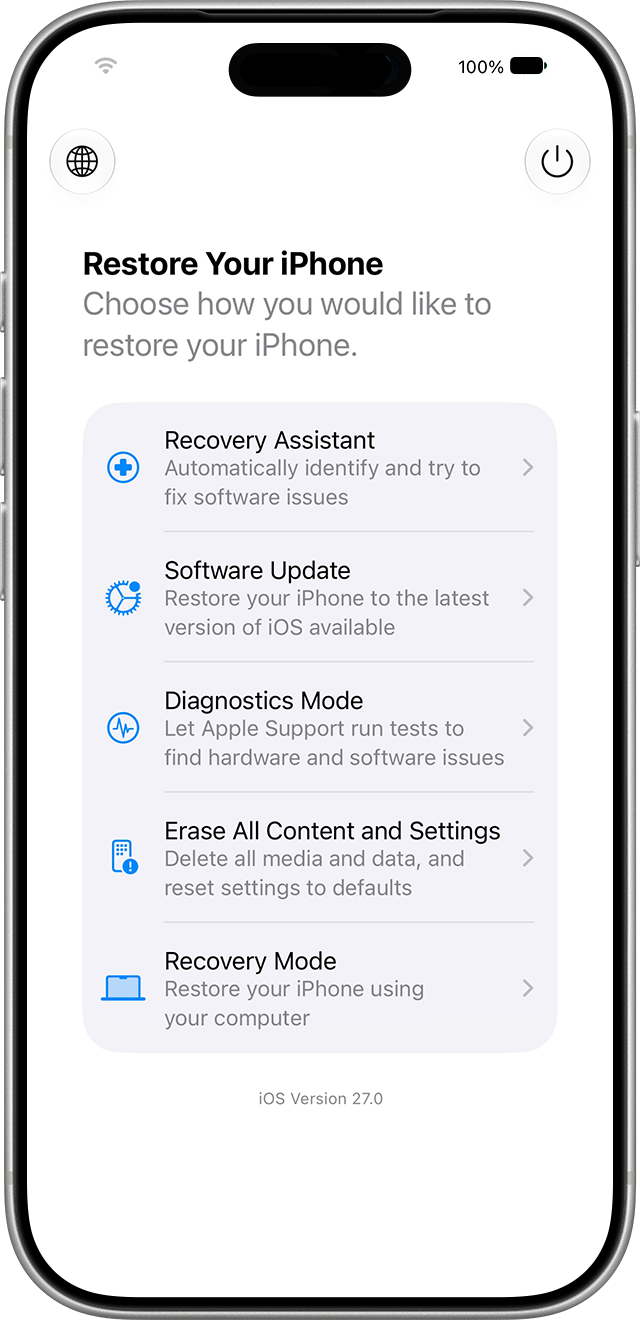
If your iPhone or iPad running iOS 27 or iPadOS 27 won’t finish starting up after an update, you can now try fixing it without a computer. Apple’s new iOS Recovery may appear automatically after a failed update. To start it yourself, shut the device down (force-restarting it if necessary), unplug it, and press and hold the side button (the top button on an iPad) past the Apple logo until “Loading recovery options” appears. You’ll see up to five choices, most of which need your passcode, Wi-Fi, or a second iPhone or iPad. Start with Recovery Assistant, which downloads software over Wi-Fi to repair startup problems. Use Recovery Mode, which requires connecting the device to a Mac or PC, only if nothing else works.
Pressing and holding the button again on that screen reveals a hidden sixth option, Nearby Device Recovery, which restores the stuck device’s software with help from a second iPhone or iPad that’s unlocked, on Wi-Fi, and running iOS 18 or later. Plug the stuck device into power, set it next to the other device, and enter the six-digit code that appears on the stuck device into the other one to share its Wi-Fi connection. Nearby Device Recovery works only on the iPhone 15 Pro or later, iPad Pro 11-inch (3rd generation) or 12.9-inch (5th generation) or later, iPad Air (5th generation) or later, iPad mini (A17 Pro), and iPad (A16). Neither Recovery Assistant nor Nearby Device Recovery can use Wi-Fi that shows a sign-in page, as in many hotels, or enterprise Wi-Fi that asks each person for a username and password. A typical home or office network with one shared password is fine. Erase All Content and Settings deletes all your data, so choose it only if you have a recent iCloud or computer backup. For a company-managed device, check with IT first—we’re also happy to help.
(Featured image by Trusted Content Network)

